Getting started
Install both applications, prepare the Windows account, and pair your trusted phone.
Open pairing guide → AdvertpreneurSmart Unlock
GETWindows
AdvertpreneurSmart Unlock
GETWindows
Smart Unlock Help Center
Follow the setup guides, understand each feature, and troubleshoot common Windows and Android connection issues.
 4 Guided setup steps
Install both applications, prepare the Windows account, and pair your trusted phone.
Open pairing guide →Work through connection, QR scanning, PC status, lock, and unlock problems.
Find a solution →Learn what pairing, connected status, Lock PC, Unlock, Test Unlock, and Remove PC do.
Explore features →Step-by-step guide
Complete these four stages in order. Keep the Windows application open until your phone confirms the connection.
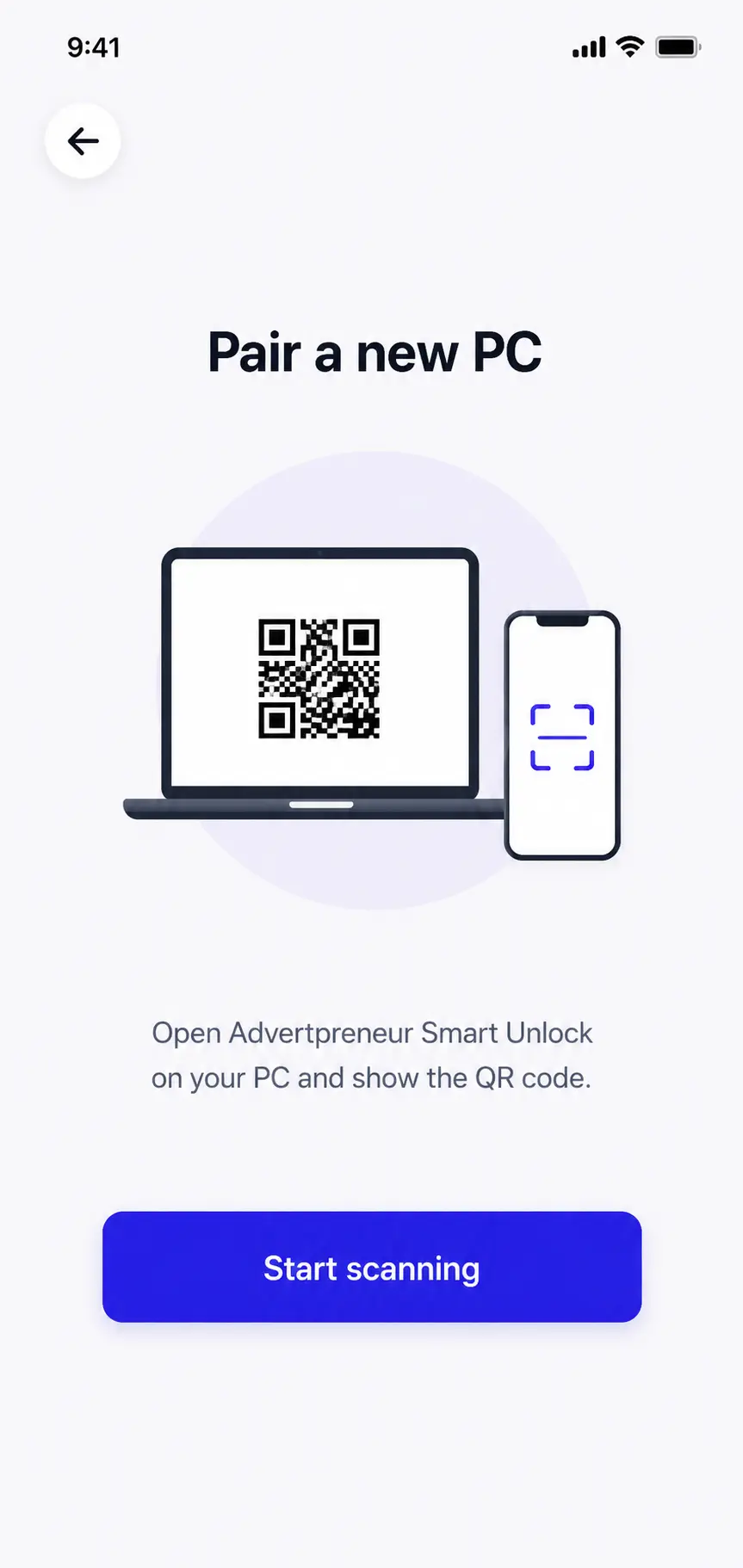
Open Smart Unlock on Windows. Select the Windows user you intend to control and complete the account setup requested by the application.
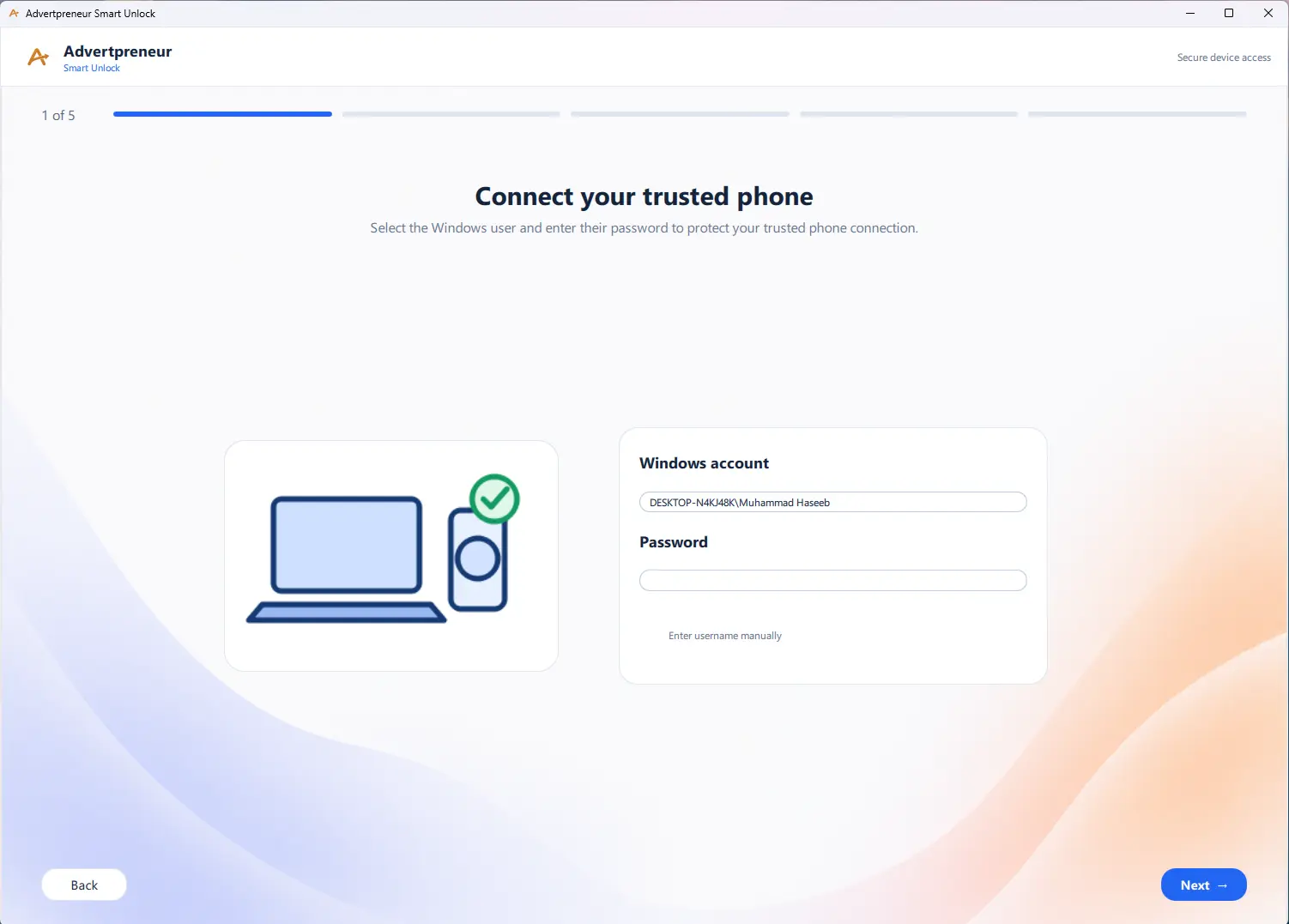
Select the unlock mode presented by your installed Windows application. Use the option that matches how you intend to authorize access.
Designed for the nearby trusted-device experience when supported by the installed build.
ManualYou approve an unlock request rather than allowing it automatically.
Legacy PairingIntended for special or existing network setups shown by the application.
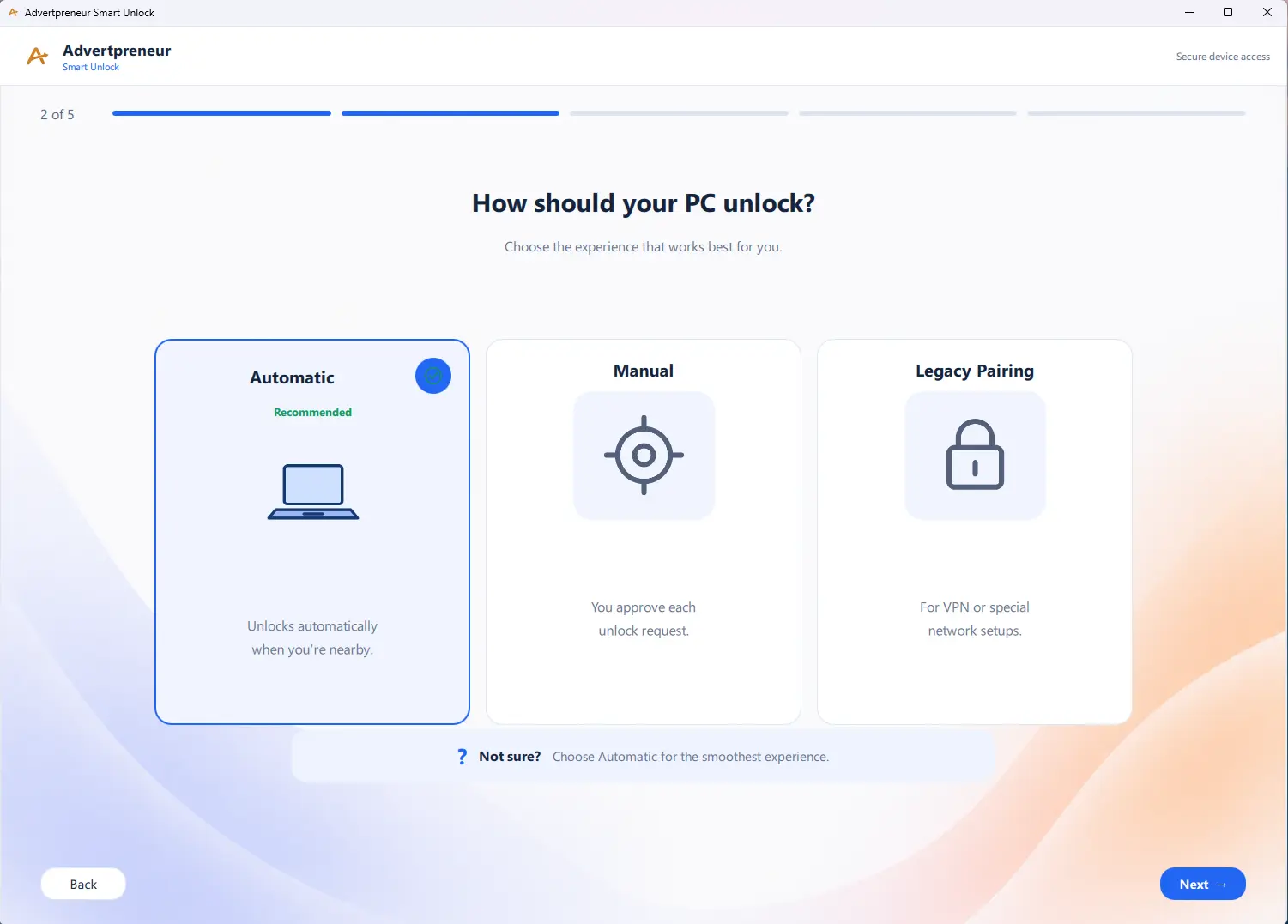
Select a connection method that is actually available in your installed Smart Unlock build and appropriate for your network.
A method appearing in a setup screen does not guarantee it is enabled in every release. Use the option recommended by the current application.
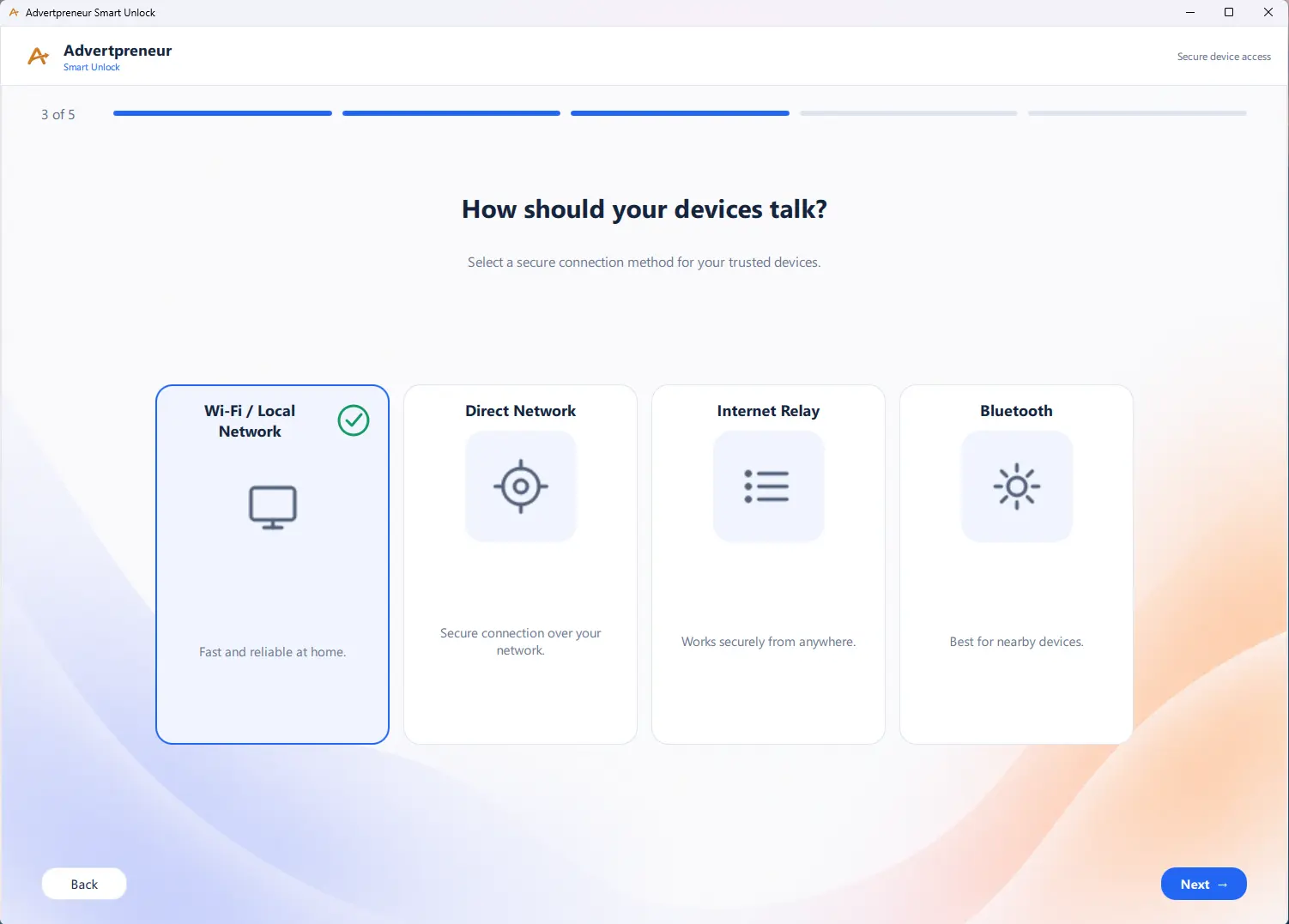
Treat a live pairing code like a temporary key. Do not post or send it publicly.
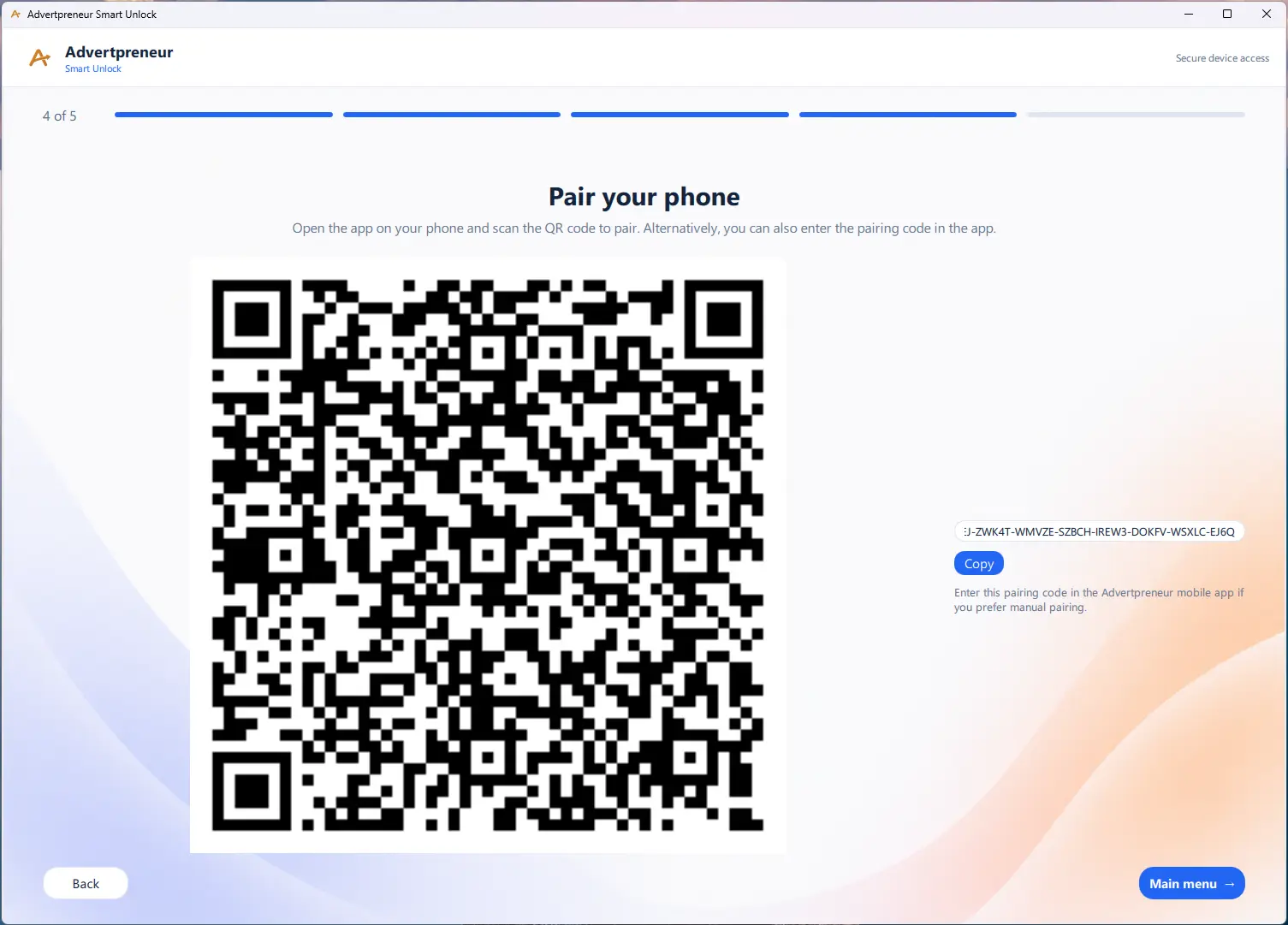
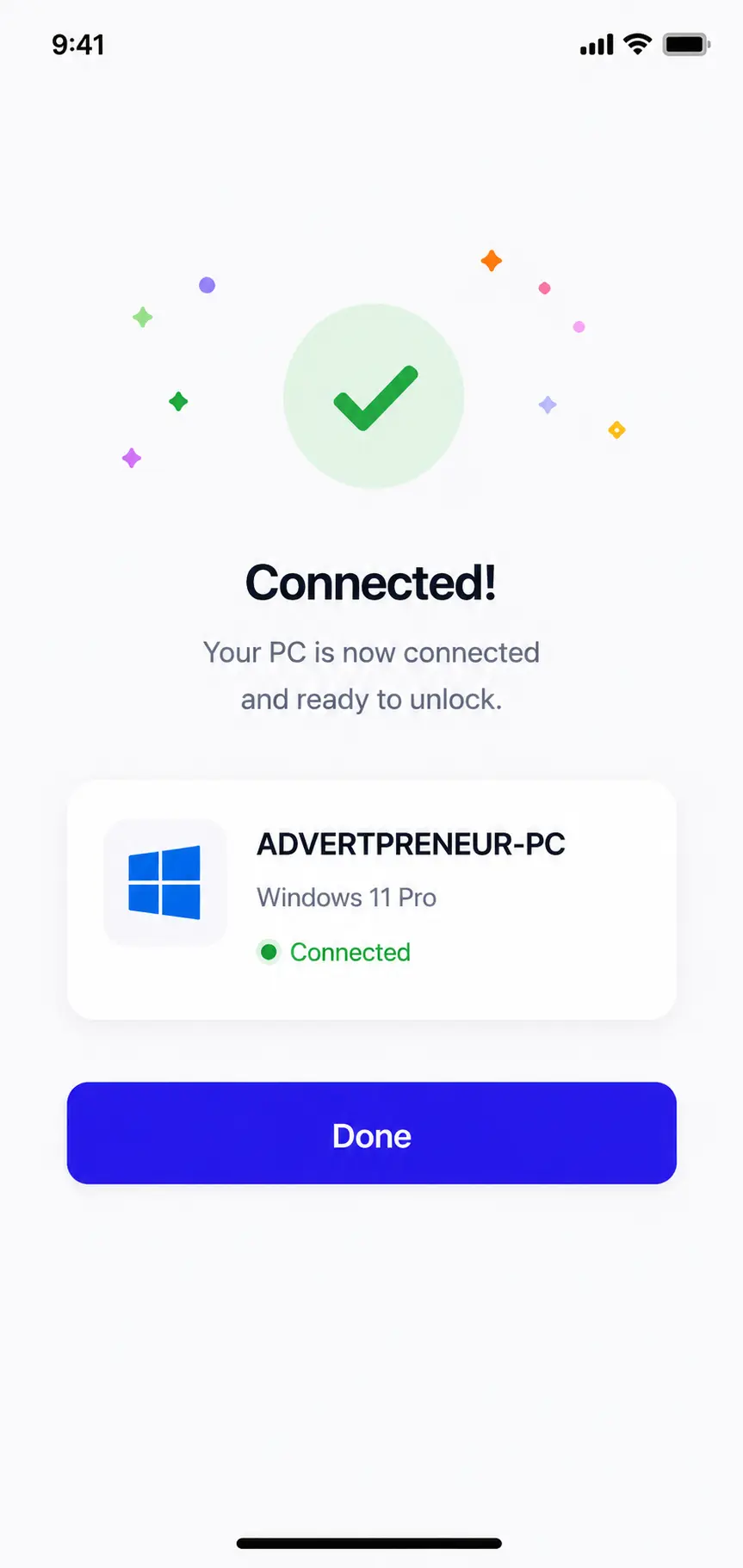
Confirm the computer name and connected status before sending a lock or unlock command.
Problem solving
Open the issue closest to what you see and follow the checks in order.
Use the available paired-device controls to remove the old relationship as soon as possible. Keep the Windows PC protected with its normal sign-in method. Pair a replacement phone only after confirming you control the Windows computer.
Open the PC details or removal option in the Android application, confirm the computer name, and approve removal. The PC will no longer appear as a trusted computer for that account.
Feature reference
Starts the trusted-device enrollment flow using the QR or manual pairing code shown by Windows.
Indicates that the application currently recognizes an available relationship with that PC.
Sends a request to lock the selected Windows computer.
Starts the configured unlock request for the selected trusted computer.
Lets you verify the configured Windows-side unlock flow where the application exposes this control.
Shows recent application actions or connection events made available by the installed build.
Revokes that computer from the Android account’s paired-device list.
Allows the dashboard to display and control more than one paired Windows computer.
Human support
Send the PC name, Windows and Android versions, the step where it fails, and a screenshot with passwords and pairing codes hidden.